
Inverter Monitor
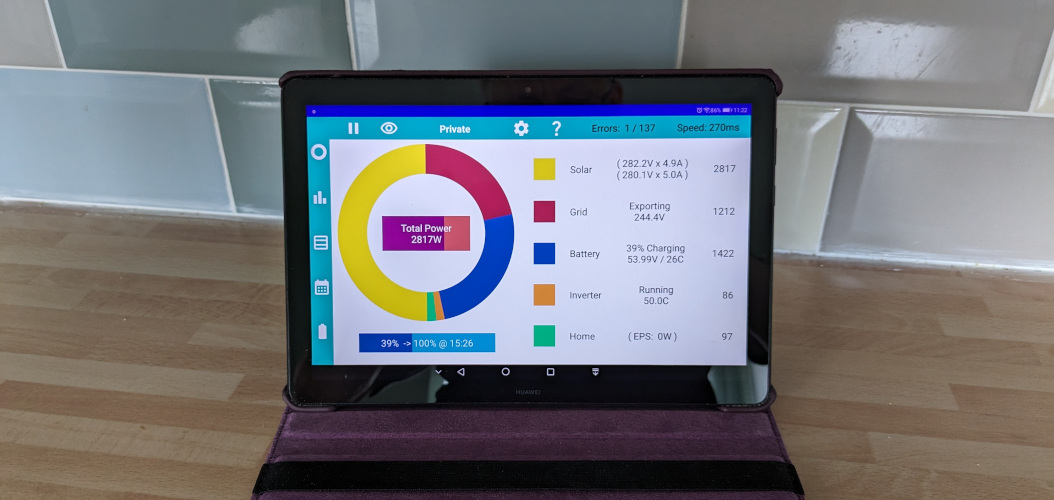
Pressing on a line in the main screen gives more information about the Inverter settings related to that topic.
Warning: Inverter settings are not well documented, and may not function as you expect. The same settings may operate differently on different models of Inverter and different levels of Inverter Firmware. They may not operate accurately.


In this example, if you press the solar line, as shown in the image, the solar controls are displayed.
Not much here, the only setting available is the startup voltage. Even then this setting is only for Hybrid and String inverters. The setting has no effect on AC-Coupled systems.
This should have been factory set to 150 Volts, and in most cases is best left alone. If you really need to adjust it, the solar startup voltage can be changed (to 120 or 180 Volts) on the Advanced Tab if you have purchased the premium control option.
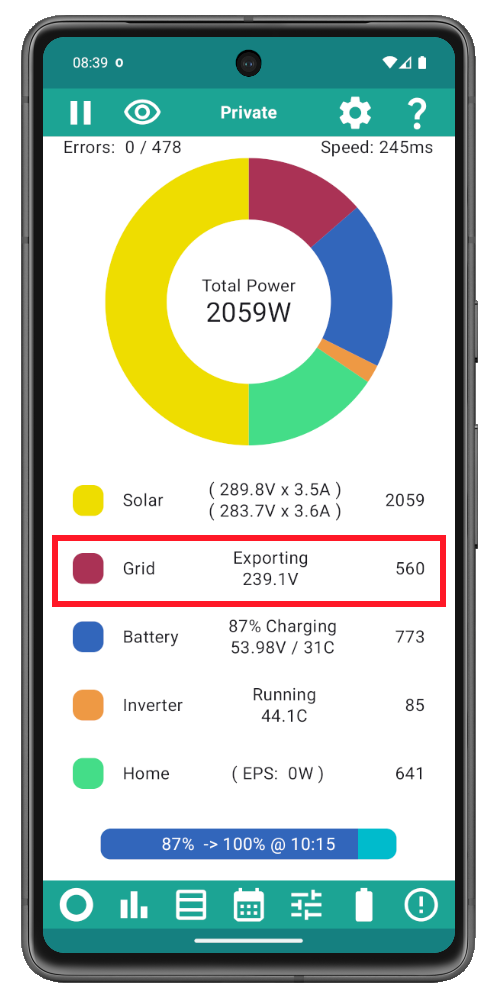
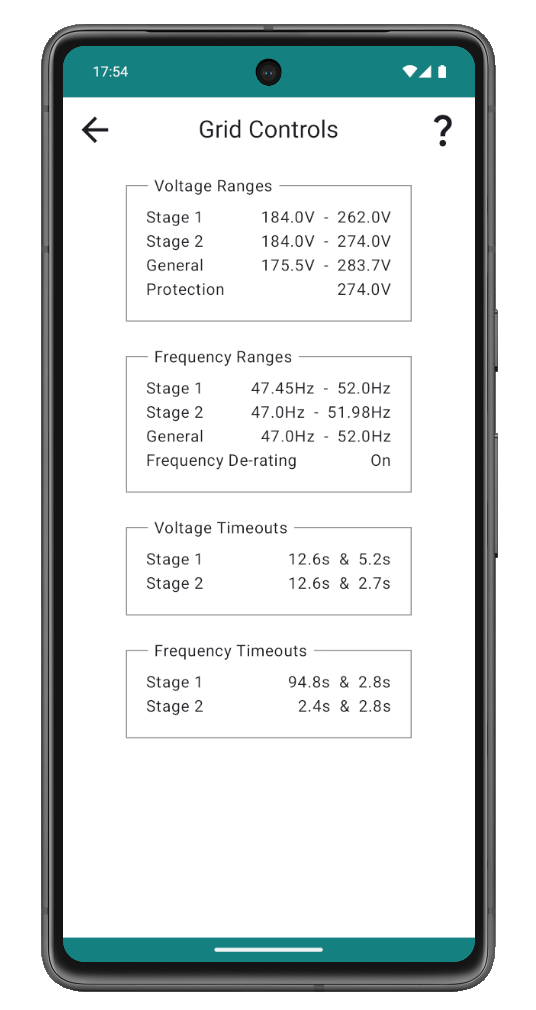
In this example, if you press the grid line, as shown in the image, the grid controls are displayed.
These controls are for information only, and changing them might get you into trouble with your DNO (Distribution Network Operator - The local electricity board responsible for your supply).
If you are experiencing grid related problems, such as the Inverter not outputting power at certain times of the day, check your settings against the example here.
There has been some discussion of some systems being set differently, and some systems shutting off very close to the 253V limit. If you are experiencing this problem start a discussion on the support forum.
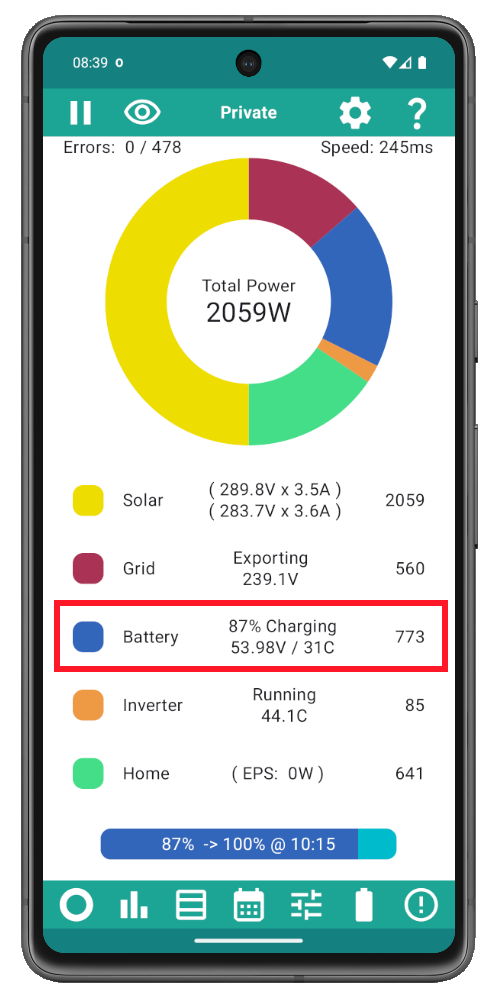
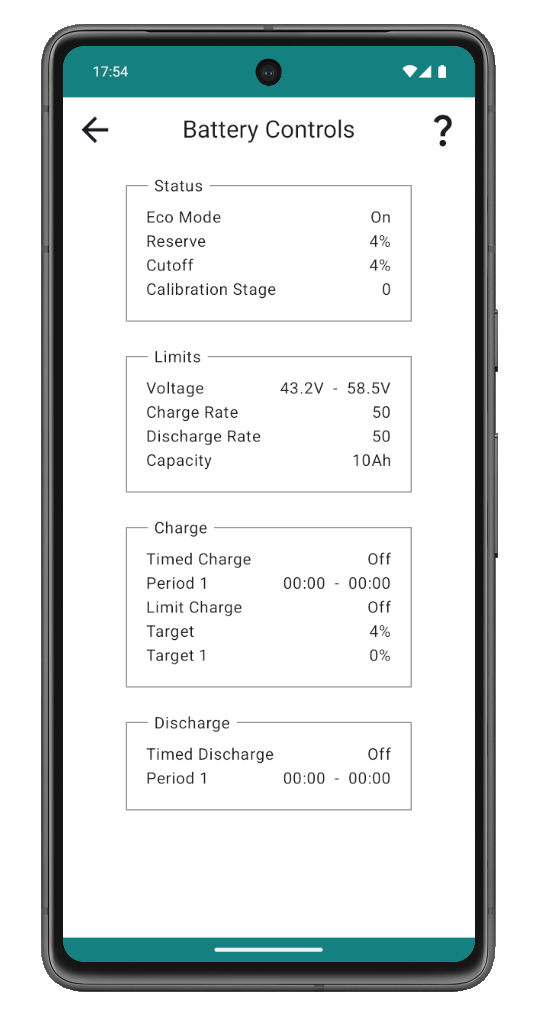
In this example, if you press the battery line, as shown in the image, the battery settings are displayed.
Most of these settings you can change yourself in a variety of ways, including:
It can become confusing if you have changed settings from more than one source. This screen is a handy check to see how they are currently set.
The premium version of this app can change all these settings except Cutoff. Cutoff is an obsolete setting that should be kept at 4% and no longer used.


In this example, if you press the inverter line, as shown in the image, the inverter controls are displayed.
These controls are mainly for information. Starting at the top, the type and power of your inverter is shown. When asking for help online it is very helpful to state the type of inverter as different models function differently.
The next line shows if the app has identified your inverter as having extended controls. These allow multiple charge slots and a pause function to be implemented.
The current firmware versions are shown. Firmware can be updated by copying the appropriate files for your inverter type onto the dongle.
To comply with ENA rules, the Export Limit cannot be adjusted by the system owner. Sometimes the Export Limit needs to be adjusted when additional capacity is installed. Any competent GivEnergy installer can apply for the necessary paperwork and adjust the limit as necessary.
Active Power should always be 100% in a domestic setting. Other settings may show here only if they are set incorrectly.

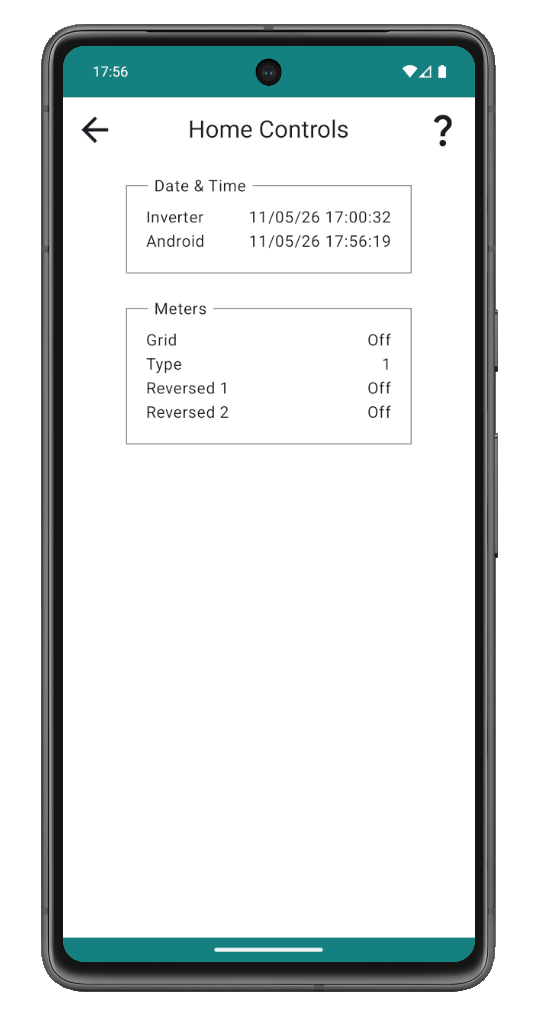
In this example, if you press the home line, as shown in the image, some general controls are displayed.
The date and time on the inverter is compared to your android device. In this example it seems the time is nearly an hour out! The time only matters if you use the timer controls for charging and/or discharging the battery. With the premium option, you can set the inverter time to match the time on the android device to make proper use of the timers.
The grid meter usually measures the power coming in or out of your home. Without a grid meter it is not possible to use ECO mode.
If the grid meter is configured On, but there is no meter connected or the meter is not working, then the inverter will shut down to prevent uncontrolled export of power. With the grid meter configured off, it is your responsibility to operate the equipment within the limits agreed with your DNO.
The meter types are not currently well understood. The ability to reverse a meter is a convenience for installers and remote support to avoid a site visit simply to turn a CT clamp around the other way.