
Inverter Monitor
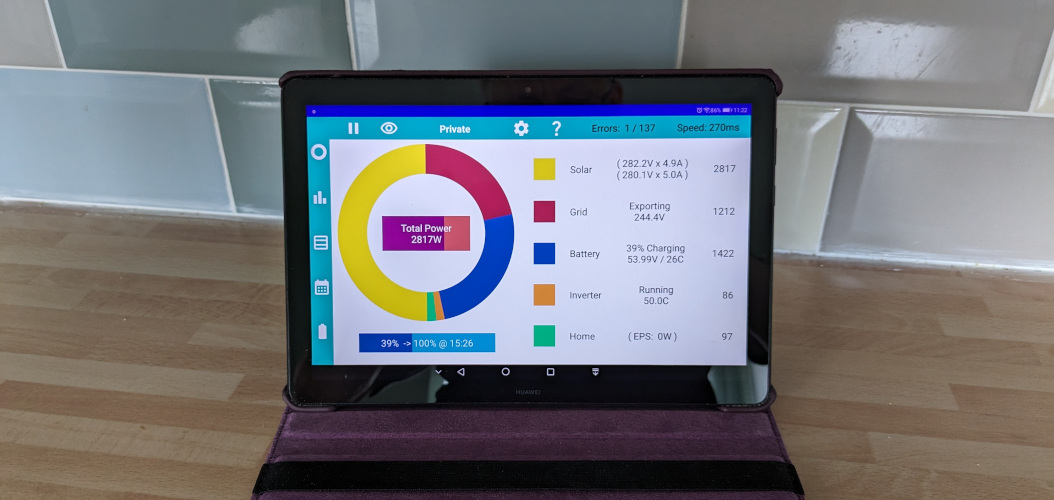
Maybe you have changed your router and cannot get the Givenergy system to connect. Maybe you tried the YouTube video but it didn't help. Or maybe you have it connected but are getting a high error rate (over 10%) recorded by the app.
The GivEnergy dongle (For gen1 and AC3 inverters) was designed sometime around 2016. It was thoroughly tested to work with popular routers available at that time. Chances are if you have a router from 2016, and are in range, it will work great. WiFi standards have progressed a long way since 2016, most routers today use 5Ghz or 6Ghz with WPA3 encryption, whereas the dongle uses 2.4GHz and WPA2 encryption.
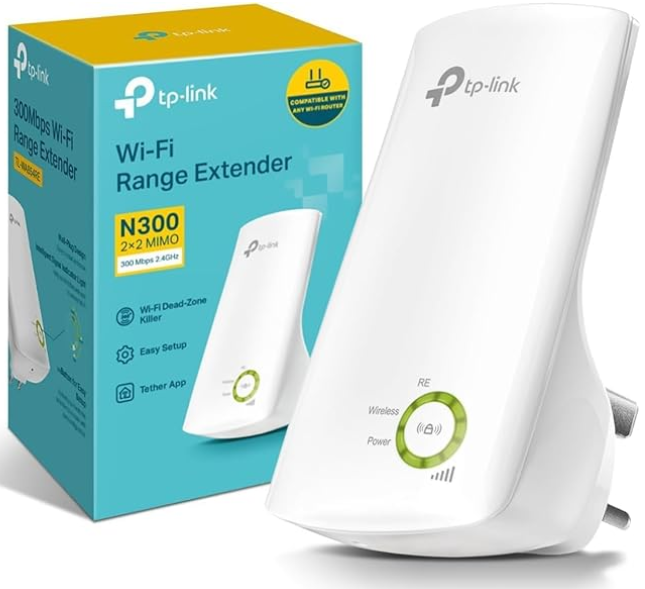
Fortunately, there is a device that works well with the old GivEnergy Dongles and also modern routers. It is called the TP-Link TL-WA854RE. If you want it to fit a UK power socket, you will need the UK version, and you can get one from Amazon.
Don't be tempted to get a better one, this is a 2.4Ghz device compatible with the Dongle. This is a rare case where paying more will give you a worse result.
Once you have your repeater, don't waste time with the Tether app from TP-Link. It's not needed and you really shouldn't need to sign up to anything.
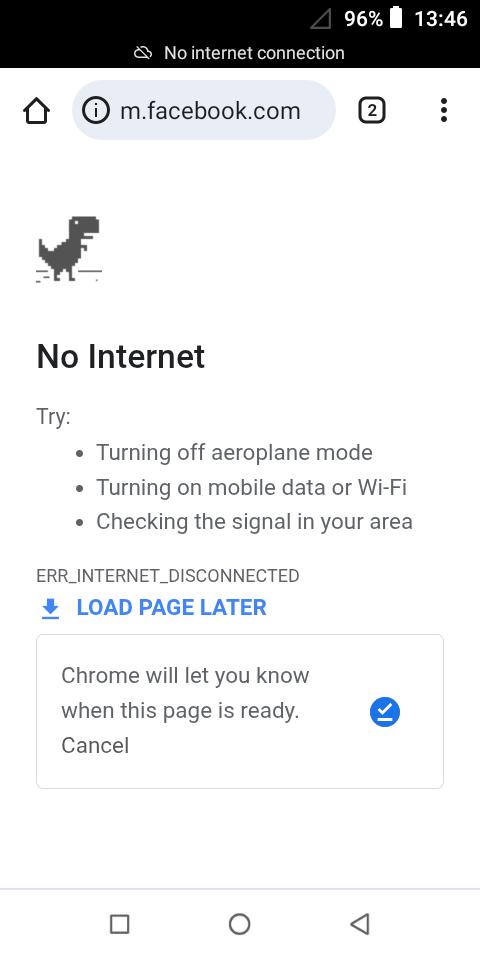
What you will need is a phone, tablet, or laptop to configure the Extender and also the GivEnergy Dongle. If your chosen device has a mobile connection (a SIM card), turn off mobile data (or remove the SIM card). In the WiFi configuration FORGET any networks that might be in range.
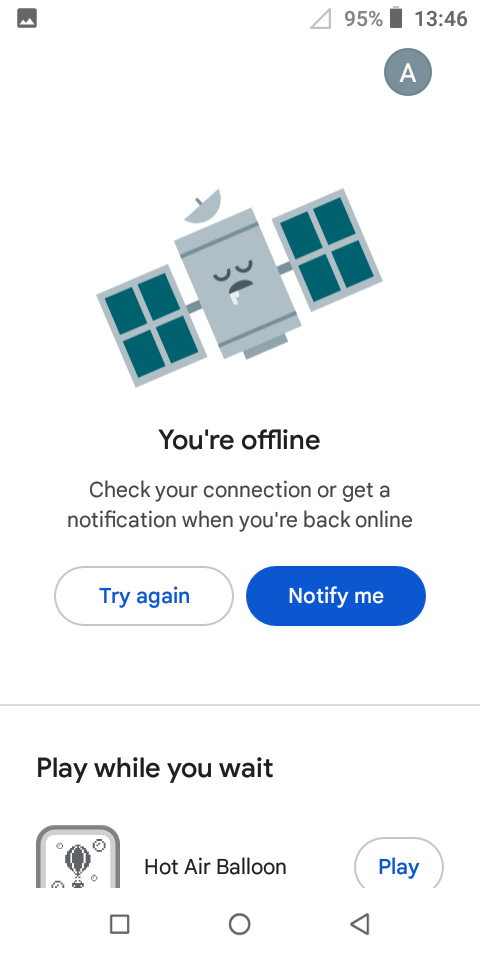
Test that your device cannot connect to the internet. This is important because the things you will be setting up won't have internet connection, and your device will try everything it can to reconnect with the internet.
Did you know if you run the Play Store app with no internet connection, it has a built in game called Hot Air Balloon?
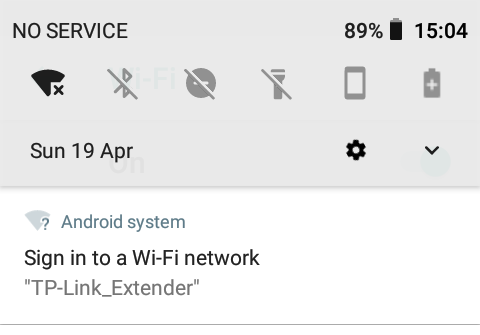
Choose a location (with a power socket!) between your router and your inverter, if you have a choice then nearer the inverter is better than near the router. Plug in the repeater and wait for it to start up. If you are lucky, a prompt will appear on your device to sign into a new network.
If the prompt doesn't appear or doesn't work, just scan your WiFi network and look for TP-Link_Extender.
As you will see in the instructions that come with the repeater there are several methods to set it up. Here one method is described, but if this doesn't work for you, try a different method. Note that if you use the WPS button method you won't be able to administer the repeater on your network.
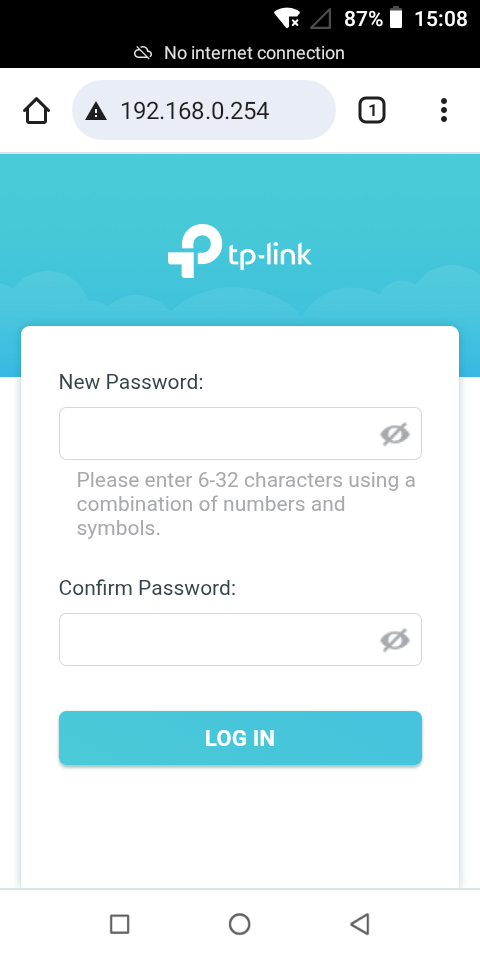
Once you have a wifi connection, open a browser and type 192.168.0.254 into the address bar.
The repeater doesn't come with a password, so you first need to set a password to access the repeater. This password has nothing to do with the password for accessing your network nor the internet. This is a password for administering the repeater only and you may never need to use it. Ideally you should remember the password somehow (by writing it down?) because if you ever need it and can't remember it, you will have to reset the repeater (by pushing a pin into the hole at the bottom) and set it up again.
Once you have set a password, follow a sequence of screens that guide you through connecting your repeater to your router. By default the router will have the network name of your router with "_Ext" appended. I would suggest changing this, maybe just add the letter "A" to the end, then if you ever need to set up a second repeater, the name won't clash.
On the final screen it asks you to confirm that it is working. Just tick the box to confirm "I have connected to the extended network" and press FINISH. If it turns out you have done something wrong and it doesn't work, you will need to start again (by pushing something in the hole at the bottom) anyway, so you lose nothing by ticking the box.
A note about passwords.
The new extended network will have the SAME PASSWORD as the main router (or whatever you connected it to). Did somebody ever tell you you should never use the same password? Well every rule has exceptions, and in this case using the same password improves security.
If you have two bank accounts, you should definitely use two different passwords, because if someone gets access to one, you wouldn't want them to have access to the other as well. But for a network repeater, it makes no difference if an intruder/hacker accesses your router or your repeater they will have the same access to your network and internet. Having separate passwords would mean that either one gives full access, hence by being the same the intruder has to find the one and only password.
With the repeater up and running, the TP-Link_Extender on the WiFi will have been replaced by the new name and your phone / tablet / laptop will again have no connection.
Scan the WiFi for your inverter, the name will have the format 2 letters, 4 numbers, 1 letter, and 3 numbers. It helps to stand close to the inverter so you can see a strong signal. Connect; if a password is needed it may be the serial number of your inverter, or 12345678, or sometimes the password is blank and not needed. If you are unable to find the password, the procedure for resetting it varies according to the model of inverter.
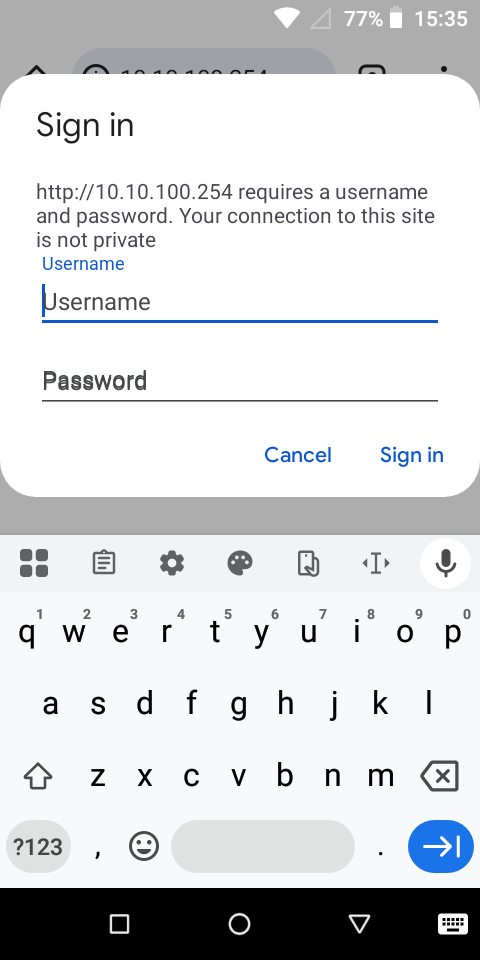
Once connected open the browser again and type 10.10.100.254 and with luck you will reach another sign in screen. Unless it has been changed, the username will be admin and the password admin (all lowercase). If you are using a phone, the next screen will look so small and squashed you probably can't read it! On a phone use two fingers to expand the page; On a laptop it should look okay. Select STA Interface Setting from the left menu.
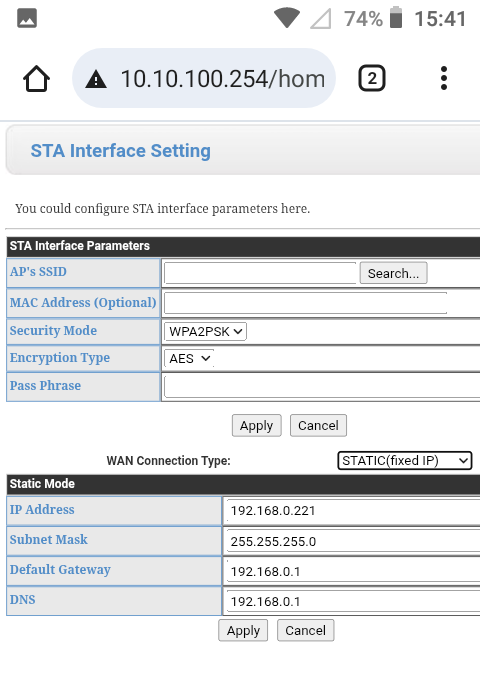
The AP's SSID needs to be the name of your repeater. You can use the search button to find and select it, or if necessary just type it in.
The Pass Phrase is the password to access your network.
If you have a good quality router, it should be able to "see" through your repeater and set the IP address for the inverter correctly using the DHCP reserved address. Some routers are confused by repeaters, and so an alternative way of setting the IP address may be needed. This is called a static address.
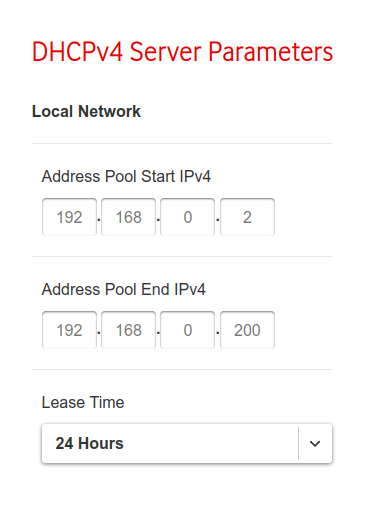
Your main router will have an address pool from which it can allocate IP addresses. Make sure to choose an address outside of the range, change the WAN Connection type from DHCP to Static, and set a fixed IP address. The Gateway and DNS addresses should normally be the IP address of your router.
Apply the changes, and restart the dongle using the Device Management menu.
If you changed to a static IP Address, make sure to update the IP Address in the Inverter Monitor app settings.
All your WiFi worries should now be over. If not, there is plenty of advice around the internet and on youtube. Failing that, you can try posting something on the support forum.