
Inverter Monitor
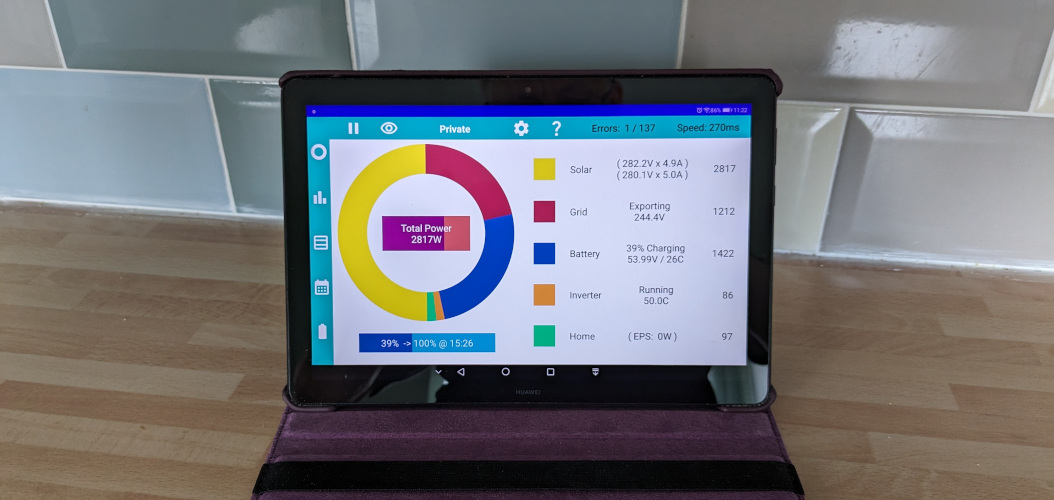
Possibly the easiest way to find the app is to open the Play Store, search for "GivEnergy", and look for the Logo.
If you are reading this on the device you want to run the app on, you can download it here, or there is a link at the bottom of this page to download the app.
But first read on to see what to do once the app is installed.
The first thing you need is a way to access your Inverter over your network. This applies whether your Inverter is connected by WiFi or by an Ethernet Cable.
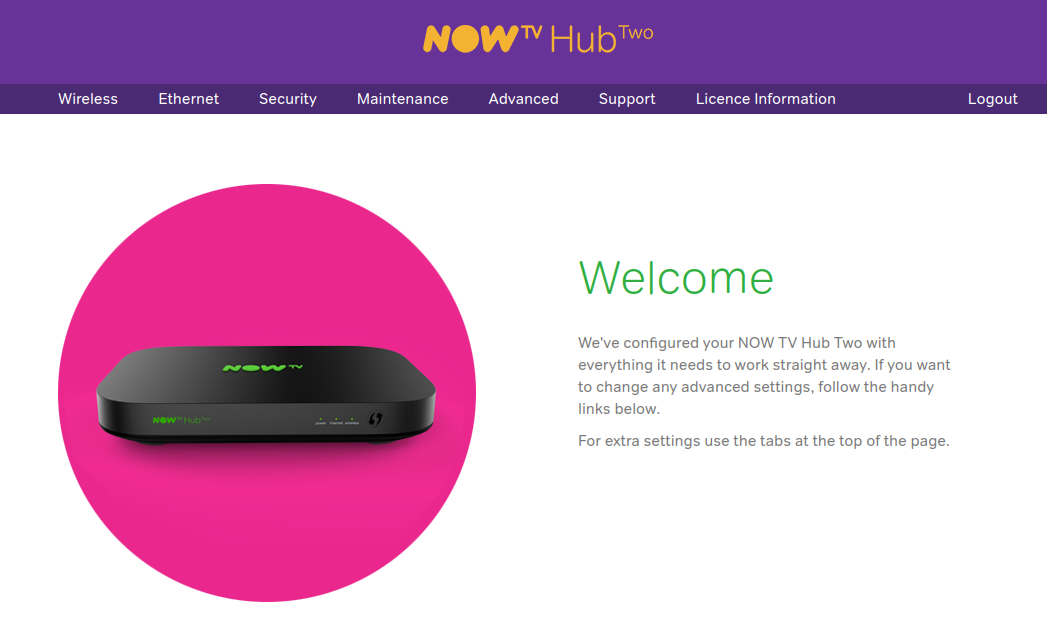
You need to set the IP Address for your Inverter. This is normally done at the router controlling your network. This is an example of using a Now TV Router, other broadband providers will be similar. Vodafone can be particularly difficult so some hints are provided for the Vodafone Power Hub.
Access your router (preferably using a desktop or laptop computer) by entering it's address (in this case 192.168.0.1) into your browser address bar. The welcome screen should appear.
Most devices connected to your home network, such as phones, tablets and laptops, only need to make outgoing connections, for example to websites. Like a telephone, if you only make outgoing calls, nobody needs to know your number and it doesn't matter if it changes. However, to control your Inverter you need to connect to it, and so it needs some name or number to uniquely identify it. And it is important that the identifier doesn't change, or the connection will stop working.
In a typical home network, the broadband router controls the allocation of IP Addresses. These are just numbers and typically the router will be number 1. After being switched on it will allocate the next number to each device that connects. This means that potentially, whenever you turn your router off and on, the devices on your network will get new numbers. This will cause a problem for the apps communication with your Inverter.
Making sure your Inverter always gets the same IP Address should be simple, but Router Designers / Manufacturers seem to like inventing new and unnecessarily complicated ways of doing the same thing.
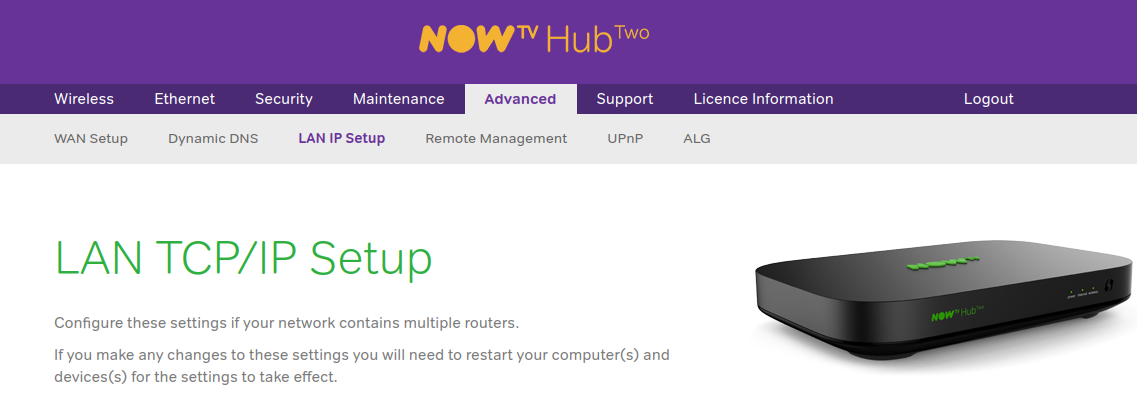
On the Now TV Hub, from the menu, select Advanced. This will ask for a username and password. Unless you have changed them, they are usually printed on the back or underneath of your router. Then select LAN IP Setup from the sub menu.
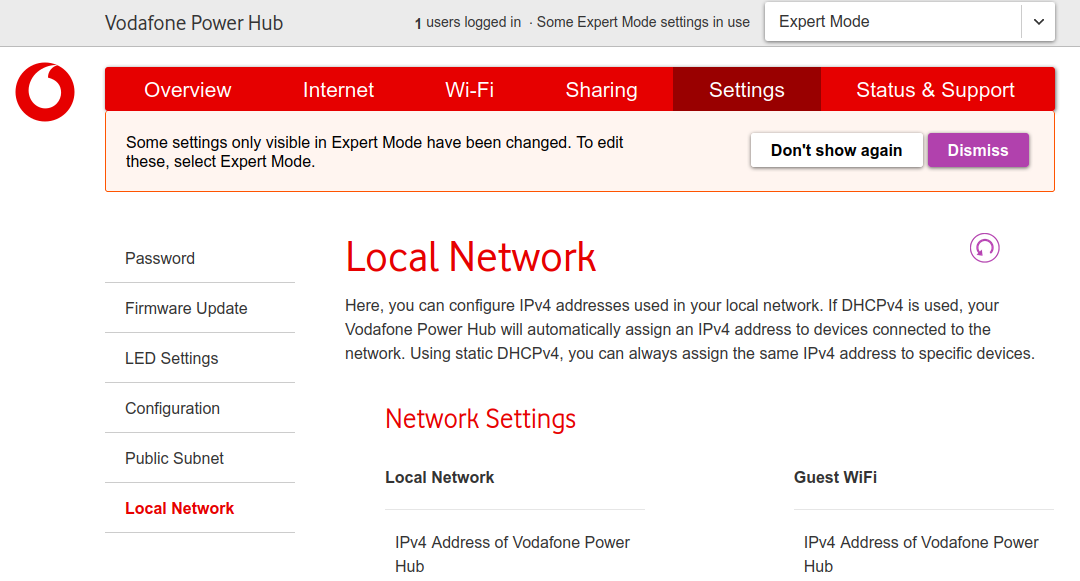
On a Vodafone Power Hub, you first need to get past the login page before you can access anything. Then from the overview page, you should be able to identify your GivEnergy Inverter in the list of "2.4 Ghz Devices". Drop down the little arrow on the right, and use the small i in a circle to open a box that shows you a MAC and an IPv4. Note these down, you will need them later!
Select "Expert Mode" at the top, then Settings underneath that, and finally Local Network on the left.

Scroll down the page to the Address Reservation section, and keep scrolling until you reach an ADD button. Even if it looks greyed out, press the add button and the Attached Devices Table should appear.
This lists all the devices currently active on your network and the IP Address that they have been assigned. Identify which one is the inverter, it may have a name of HF-A21 as shown here. The MAC address should start with 28:9c:6e which indicates that it was manufactured by the High Flying company in China. (By the way, that's what the HF stands for).
Select the line, and the details transfer to the boxes below the table. Here you can change them if you wish, say to give the Inverter a more recognisable name. Press add and the reservation will be saved.
On a Vodafone Hub, scroll down to the section "Static DHCPv4 - Local Network", press the add button, select New Device, type in a name, then the MAC and IPv4 that you noted down earlier. Go to the bottom of the page and press Apply.
Remember the IP Address and put it into the Inverter Monitor app. That's all there is to it!
As stated earlier you only need to reserve addresses for your servers, routers, firewalls, and other devices that need connecting to. But there is no reason you shouldn't reserve addresses for all your devices, so that you can give names to them and identify exactly what is connected to your network.
Then when the inevitable happens, and your connection slows down, you can easily see what is connected and identify the culprit. For the paranoid, it also makes it easier to spot unauthorised intruders.
For maximum Geek points, you can document a table of devices, names, and IP Addresses using your favourite word processor or spreadsheet.